
What is Altcha and how to recognise it
Altcha is a privacy-first, self-hostable bot-protection widget. Instead of an image puzzle it asks the browser to run a silent proof-of-work computation in a Web Worker, then posts the result as a JSON payload. In the default flow there is nothing for the visitor to click.
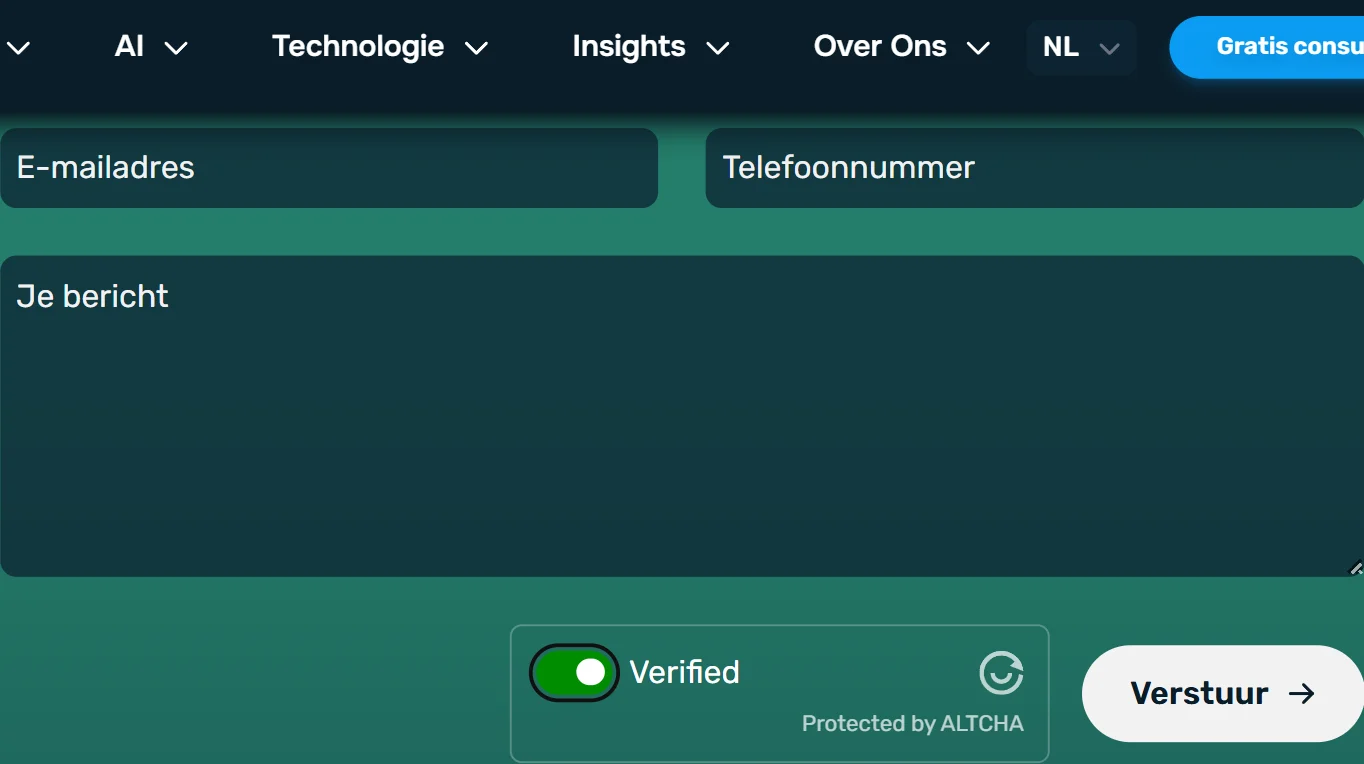
The widget is a web component, <altcha-widget>, and its result lands in a hidden form field named altcha unless the site renamed it. The server issues a fresh challenge with an algorithm, a challenge, a salt and a signature; the browser searches for a number that satisfies it; the server checks it with one cheap verification. That is why a solve is a computation, not recognition.
Some sites running Altcha Cloud or Sentinel can escalate suspicious traffic to an interactive text or audio code challenge. A proof-of-work result does not satisfy that step, so the clean fit is a site that uses only the proof-of-work widget.
Extension, API or automation?
There is no browser extension: SurSolver is an HTTP API. For this type the input is the challenge you captured, and the answer comes back through createTask and getTaskResult. The type needs no proxy.
Automation is the practical route when the challenge has to be read from the live page: a Playwright or Puppeteer script captures the challenge response, the API solves it, and the script writes the token into the field and submits. A server-side job works the same way when the challenge endpoint can be called directly.
How to find the parameters
Altcha has no sitekey. What the task needs is the page URL plus the challenge, either as a URL or as the JSON itself.
In DevTools, open the Elements panel and look for <altcha-widget>. Its challengeurl attribute, or its challenge attribute when that holds an address, is where the widget gets the challenge from. Then open the Network tab and find that request. The endpoint differs from site to site, and some include a sitekey or apiKey query value that belongs to the URL, not to a separate key.
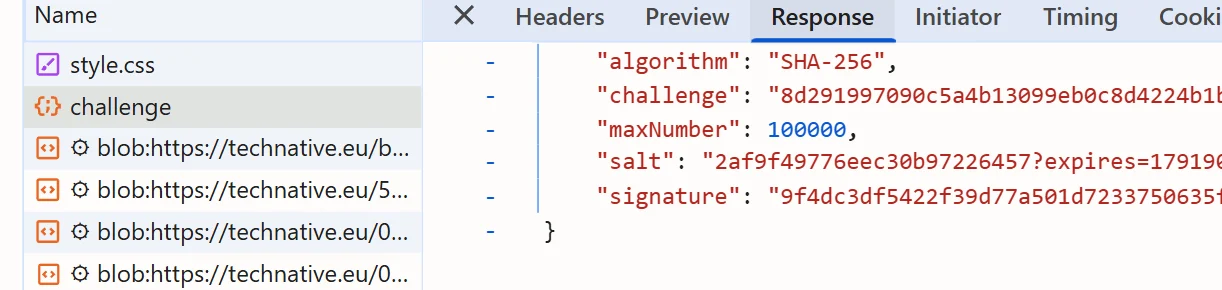
The response body is the challenge JSON, with algorithm, challenge, salt and signature, and usually a maximum number. Copy it exactly as received. The algorithm matters for solve time: memory-hard ones such as Argon2id and Scrypt are heavier than the default.
Where the token goes
The solution has a single key, token. Put it into the hidden input the widget manages, named altcha by default. Confirm the name in the Elements panel, because the widget's name attribute can change it, and some sites expect an altcha cookie instead. Then submit the form as usual.

Submit the full token, not only the number inside it, unless the receiving server demonstrably accepts the bare number; servers differ, so test both if the first attempt is refused. In a browser-automation script, fill the field with page.fill() or the DOM equivalent and submit straight away.
Common mistakes
The commonest failure is a stale challenge. Challenges are fresh and single-use, and they carry an expiry, so capture one right before you create the task and never retry with the same one after a rejection.
The second is changing the data in transit: pass the challenge JSON through exactly as the endpoint returned it. The third is expecting a proof-of-work result to clear an interactive code challenge. If a site escalates, no number will pass that step.
Do not look for a sitekey that does not exist, and do not assume the field is called altcha without checking. Expect slower results on sites that use the memory-hard algorithms.
Solve it with SurSolver
Send the page URL and either the challenge URL or the challenge JSON to createTask with the task type AltchaTaskProxyless (or AltchaTask), then poll getTaskResult until the status is ready. The solution's token key is what you place in the altcha field. The accepted names and parameters are listed by the public catalog (GET /v1/task-types).