
What is reCAPTCHA v2 and how to recognise it
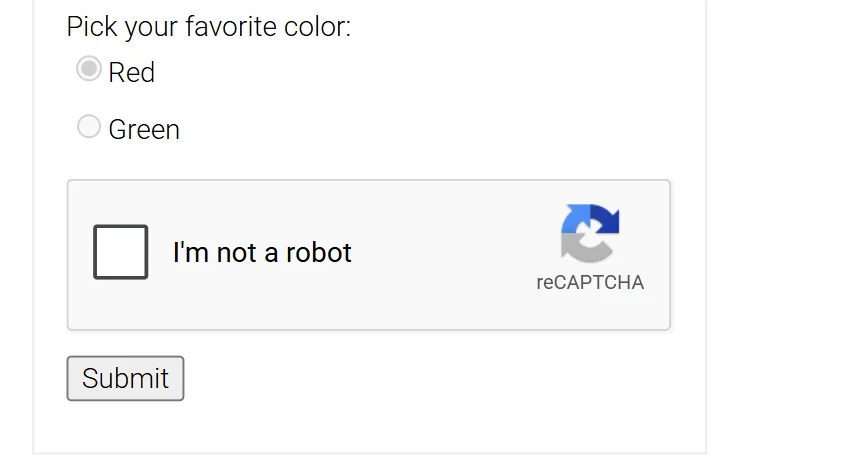
reCAPTCHA v2 is Google's bot check in two modes. The checkbox mode shows "I'm not a robot" and may open an image grid. The invisible mode has no checkbox at all: the challenge fires when the visitor submits a form or clicks a button. Either way the widget is rendered with a public site key and produces a token that the site's server verifies with Google.
There is also reCAPTCHA v2 Enterprise. It looks the same to a visitor, but the page loads enterprise.js instead of api.js and verification goes through Google Cloud. In the DevTools Network tab the difference is the request path: /enterprise/anchor for Enterprise, /api2/anchor for standard v2. Check this first, because the two variants are separate task types.
A solve returns the token as gRecaptchaResponse. The token is single-use and short-lived — about two minutes, and a shorter window is safer — so it is meant to be used in the request you are about to send.
Extension, API or automation?
There is no browser extension: SurSolver is an HTTP API that you call from your own code with createTask and getTaskResult.
For reCAPTCHA v2 the usual setup is a Playwright, Puppeteer or Selenium script, because the token has to be written back into the page you are driving: the script collects the site key, requests the token and puts it into the form. If the form can be submitted without a browser, a plain HTTP client works the same way, with the token sent as a form field.
How to find the reCAPTCHA v2 site key
Open the page, press Ctrl+F in the Elements panel and search for data-sitekey. The value on the g-recaptcha element is the site key. When the page builds the widget from JavaScript there is no such attribute: reload with the Network tab open, filter for recaptcha, open the anchor request and read its k parameter. The k value of the iframe src is the same key.
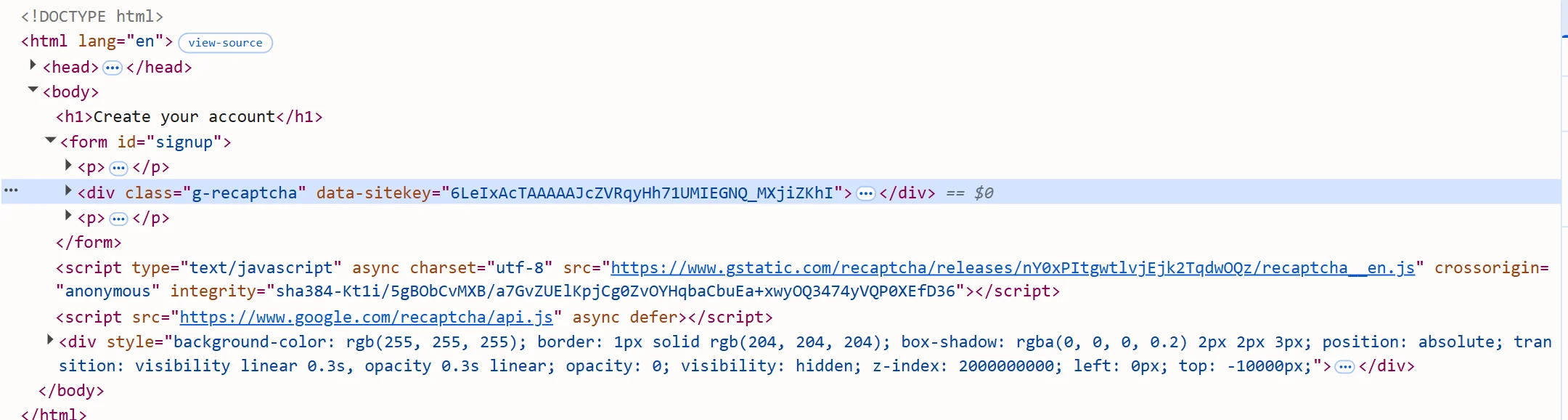
Three more parameters depend on the variant. For an invisible widget the iframe URL contains size=invisible and the page shows no checkbox; send isInvisible for it. For Enterprise, look in the page's inline scripts for the grecaptcha.enterprise.render call: extra fields such as s go in enterprisePayload, and s is short-lived, so copy it right before creating the task. On some Google-owned pages the widget carries a one-time data-s value, which is sent as recaptchaDataSValue.
The page URL you send is the full URL of the page that shows the widget, including its path. Set apiDomain only when the page loads the script from www.recaptcha.net instead of Google's own host.
Where the token goes
Put the returned gRecaptchaResponse into the hidden g-recaptcha-response textarea of the form and submit the form. Sites that register a data-callback expect the token to be passed to that function instead. The exact path to the callback varies between pages, so find it in the page's own script. Some sites read the field from a direct POST, in which case send the token as the g-recaptcha-response form field together with the rest of the form data.
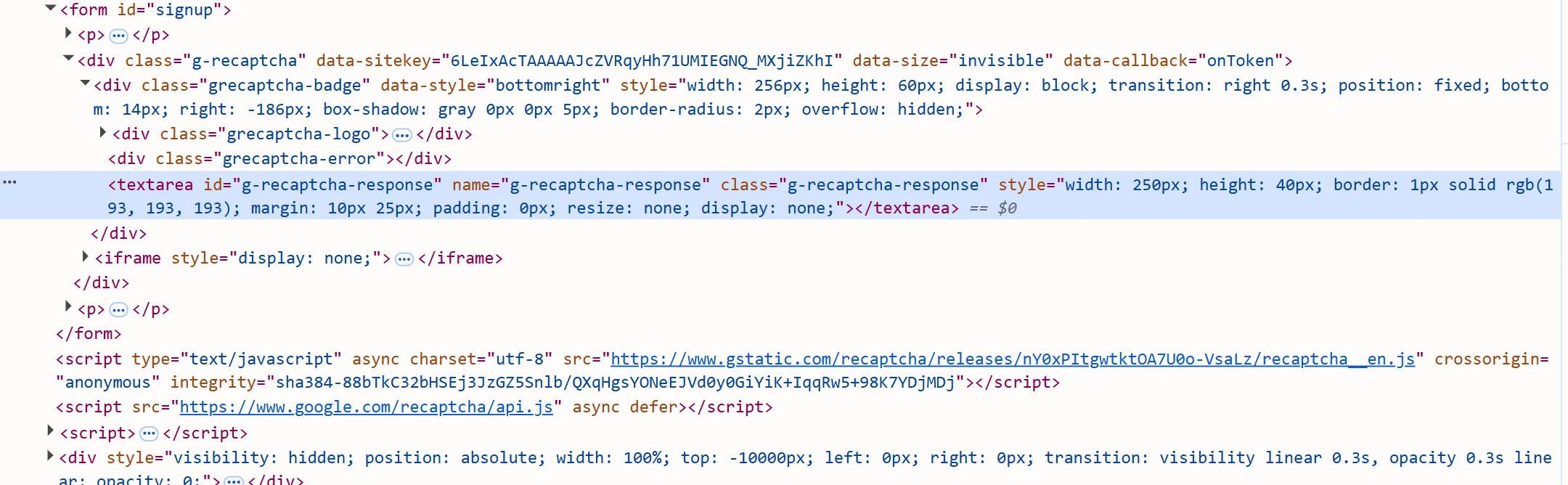
In a browser-automation script, set the textarea with page.evaluate() or the equivalent DOM call, then click the submit button. When the solution carries a user agent, use it for the submitting session. Submit immediately: a token that sits unused expires, and each token is accepted once.
Common mistakes
The first mistake is mixing up the variants. A token made through the standard task type is rejected by a page that uses Enterprise, and the other way round, so confirm api.js or enterprise.js before you create the task. The second is the invisible flag: an invisible widget solved without isInvisible, or a checkbox widget solved with it, produces a token the site does not accept.
Stale values come next. enterprisePayload.s is short-lived: copy it again for every attempt instead of reusing the one from an earlier run. A token older than about two minutes, or one already submitted, is rejected on verification (typically with a timeout-or-duplicate error) — never cache or pre-solve tokens.
Finally, proxies. Google's verification does not report the IP that solved the challenge, so the proxyless task name works for most pages. Pages that need the solve and the submit to share one address — Google's own surfaces, or sessions pinned to an IP — need the proxy variant with the same exit for both steps. Proxy quality then matters a lot: a poor proxy is reported to lower the success rate and slow the solve. Also keep the user agent consistent: reuse the one returned with the solution when you submit. If you use your own proxy and it authenticates by IP address instead of a login, that IP has to be whitelisted with your proxy provider first, or the solve fails on the proxy.
Solve it with SurSolver
Send the page URL and the site key to createTask with the task type ReCaptchaV2TaskProxyLess (or ReCaptchaV2Task to solve through your own proxy). For Enterprise pages use ReCaptchaV2EnterpriseTaskProxyLess or ReCaptchaV2EnterpriseTask. Poll getTaskResult until the status is ready; the solution carries gRecaptchaResponse and, when the solver reports one, the userAgent. The accepted names and parameters are listed by the public catalog (GET /v1/task-types).