
This guide takes you from a page with a Cloudflare Turnstile widget to a submitted form: which values to collect from the page, what to send to createTask, where the returned token goes, and why a token that looks fine is sometimes rejected.
What a Turnstile task needs
Turnstile is a widget a site embeds in its own page, usually next to a login, signup or checkout form. The page loads normally (HTTP 200) and the widget produces a token of up to 2048 characters that the form sends back to the site. If your first request returns 403 and a page that only says "Just a moment…", you are not looking at Turnstile; read Cloudflare Challenge vs Turnstile vs Waiting Room vs JSD first.
The task types are TurnstileTokenProxyLess and TurnstileToken. The names TurnstileTask, TurnstileTaskProxyless and AntiTurnstileTaskProxyLess are accepted as aliases. The full list is in the public catalog (GET /v1/task-types).
| Field | Required | What it is |
|---|---|---|
websiteURL |
yes | The page that renders the widget, with its path |
websiteKey |
yes | The sitekey; always starts with 0x |
action |
no | Copy it only if the widget declares one |
cData |
no | Copy it only if the widget declares one |
chlPageData |
no | Only for a widget running inside a Cloudflare challenge page |
userAgent |
no | Optional; only worth sending together with a proxy |
The result contains token, and userAgent when the solver reports one. Those are the only two keys.
Find the sitekey, action and cData
Open the page in DevTools and look for the element that renders the widget. On most sites it is a div with the class cf-turnstile:
<div class="cf-turnstile"
     data-sitekey="0x4AAAAAAAxxxxxxxxxxxxxx"
     data-action="login"
data-cdata="session-8841"></div>data-sitekey is the websiteKey, data-action is action and data-cdata is cData. Copy them exactly. If the attributes are not there, search the page source for turnstile.render: a page that renders the widget from JavaScript passes sitekey, action and cData in the options object of that call.
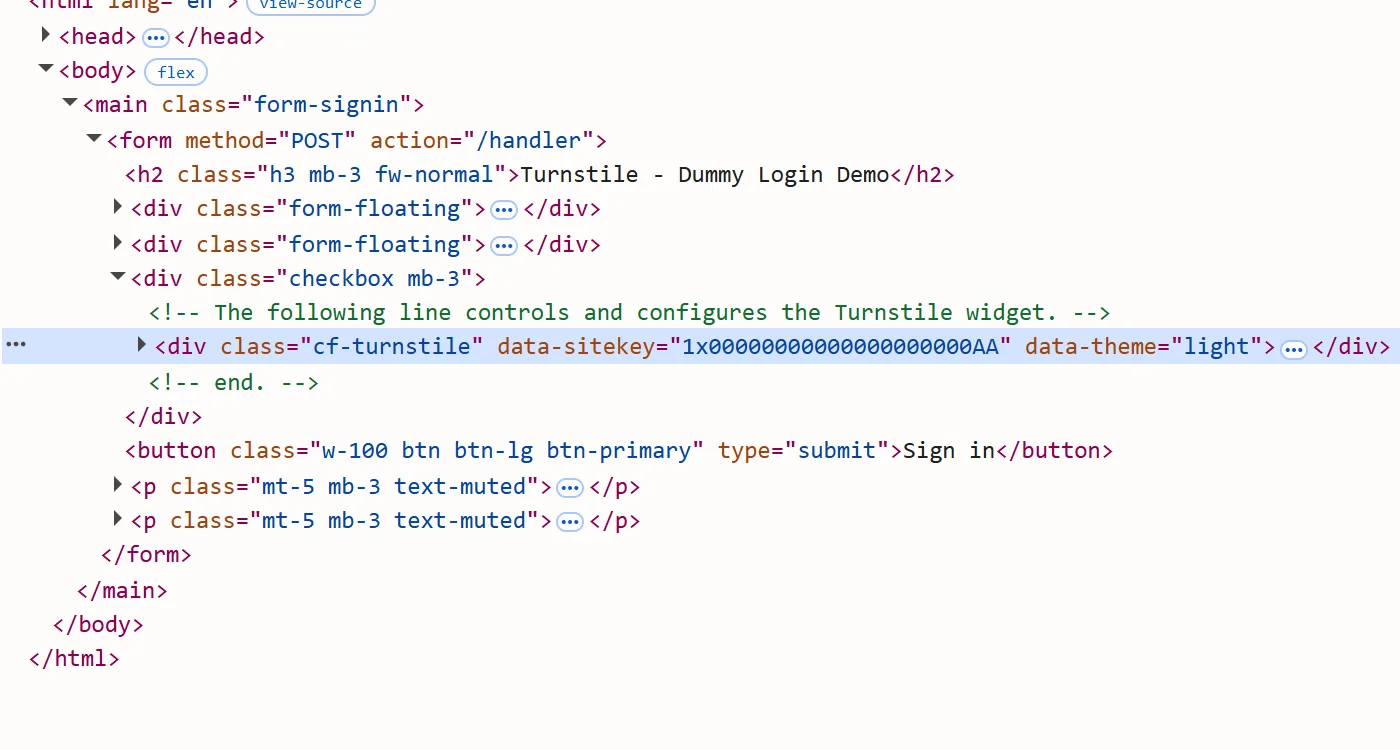
Cloudflare publishes test sitekeys, for example 1x00000000000000000000AA. They are useful for checking that your form wiring works. They prove nothing about solving a real site, so do not use one as your sitekey in production.
Read the values at render time
Some values only exist at runtime: cData and chlPageData can change on every page load, and a callback never appears in the markup. To capture them, wrap turnstile.render before the widget script runs. Wrapping render is a pattern, not a guarantee: if a page defines turnstile differently, adapt it.
let realTurnstile;
Object.defineProperty(window, 'turnstile', {
  configurable: true,
  get() {
    return realTurnstile;
  },
  set(value) {
    realTurnstile = value;
    if (!value || typeof value.render !== 'function') return;
    const render = value.render.bind(value);
    value.render = (container, params) => {
      window.__turnstileParams = {
        sitekey: params.sitekey,
        action: params.action,
        cData: params.cData,
        chlPageData: params.chlPageData,
      };
      window.__turnstileCallback = params.callback;
      console.log('turnstile.render', window.__turnstileParams);
      return render(container, params);
    };
  },
});In Playwright, register it with page.addInitScript before page.goto. Read the logged values immediately before you create the task, because they can change on the next render. The saved callback is what you call in the last step.
Request the token
Send the values you collected to createTask, then poll getTaskResult every 3 seconds until status is ready. processing means keep waiting. The API answers HTTP 200 for every error it reports itself, with errorId: 1; an unexpected fault is an HTTP 500 without errorId.
import time

import requests

API = 'https://api.sursolver.com'
POLL_SECONDS = 3
DEADLINE_SECONDS = 120
REQUEST_TIMEOUT_SECONDS = 30


def call(path, body):
    res = requests.post(f'{API}{path}', json=body, timeout=REQUEST_TIMEOUT_SECONDS)
    res.raise_for_status()  # HTTP 500 has no errorId
    data = res.json()
    if data.get('errorId'):
        raise RuntimeError(f"{data.get('errorCode')}: {data.get('errorDescription')}")
    return data


def solve_turnstile(api_key, page_url, sitekey, action=None, cdata=None):
    task = {'type': 'TurnstileTokenProxyLess', 'websiteURL': page_url, 'websiteKey': sitekey}
    if action:
        task['action'] = action
    if cdata:
        task['cData'] = cdata
    created = call('/createTask', {'clientKey': api_key, 'task': task})
    deadline = time.monotonic() + DEADLINE_SECONDS
    while time.monotonic() < deadline:
        time.sleep(POLL_SECONDS)
        result = call('/getTaskResult', {'clientKey': api_key, 'taskId': created['taskId']})
        if result['status'] == 'ready':
            return result['solution']
raise TimeoutError(f"task {created['taskId']} still processing after {DEADLINE_SECONDS}s")The deadline is your choice; the API documents the 3-second interval, not a ceiling. A task is charged when createTask accepts it, and a task that finishes as failed, including server-side expiry, automatically returns its original charge once, so avoid wrapping this call in a blind retry loop.
Submit the token
Where the token goes depends on how the page was built. Check what the form actually sends in the Network panel before you pick.
- A hidden input named
cf-turnstile-response. This is the usual case. - A hidden input named
g-recaptcha-response, when the site enabled reCAPTCHA-compatibility mode. - A
callbackpassed toturnstile.render. The page may never create a field; it expects its own function to be called with the token.
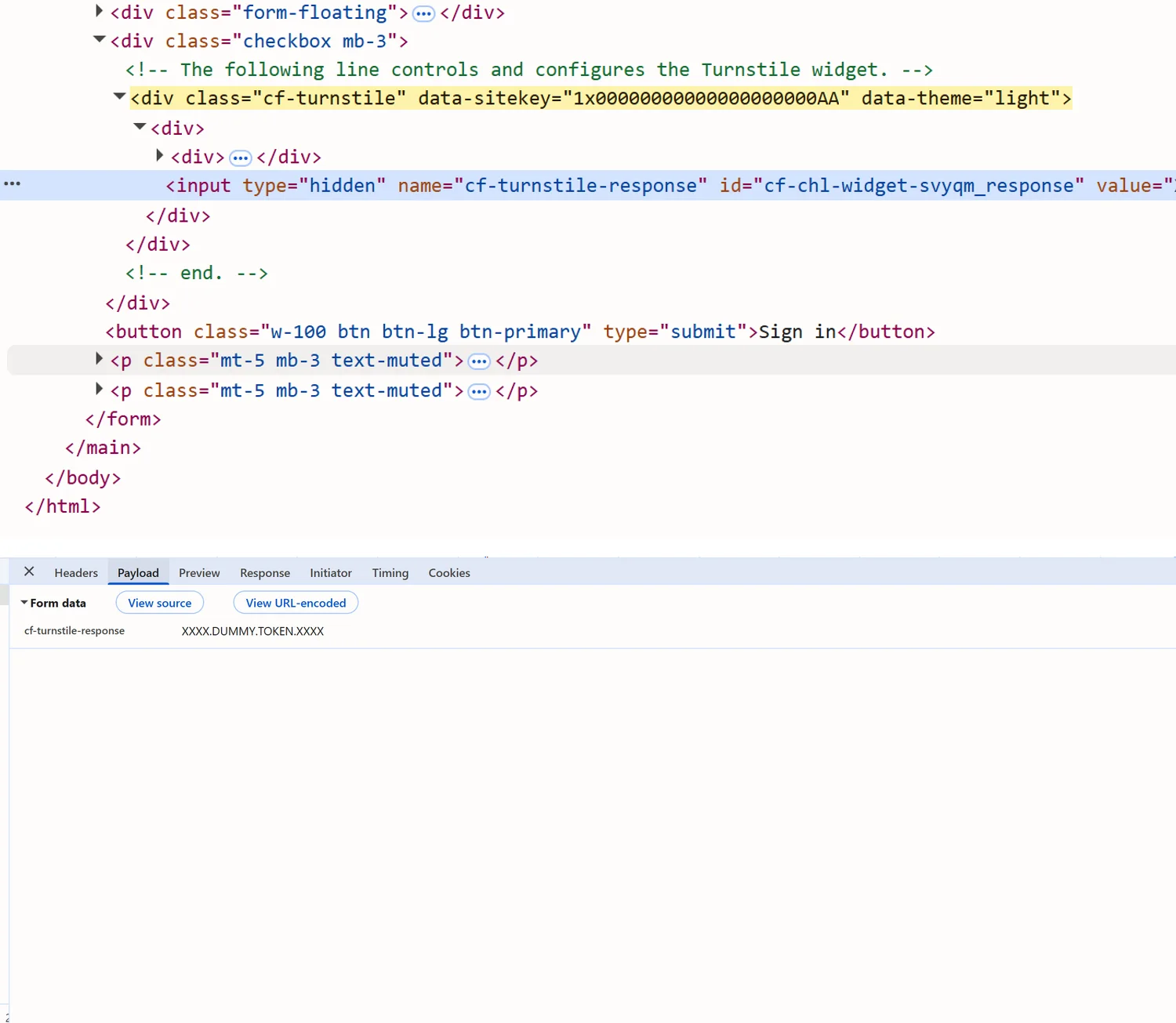
In a browser you are automating, fill the field and call the callback if there is one:
async function applyToken(page, token) {
  await page.evaluate((value) => {
    const field =
      document.querySelector('[name="cf-turnstile-response"]') ||
      document.querySelector('[name="g-recaptcha-response"]');
    if (field) field.value = value;
    if (typeof window.__turnstileCallback === 'function') {
      window.__turnstileCallback(value);
    }
  }, token);
}Then submit the form the way a user would. If you post the form yourself with an HTTP client, send the token under the same field name the browser used, together with every other field the form contains. The token submission post covers textareas, callbacks and cookies for other captcha types too.
When the solution includes userAgent, use it for the request that submits the token. It is conditional: when the key is absent, keep the user agent you were already using.
Token lifetime and verification errors
The token is single-use and expires after about five minutes. The site's server verifies it with a POST to https://challenges.cloudflare.com/turnstile/v0/siteverify, and what you see in the browser is whatever the site decides to show after that. The result of that call never comes back to you, but its error codes explain most rejections: timeout-or-duplicate means the token expired or was already redeemed, which is what a double submit, a retry or a redirect that verifies a second time produces. The other codes you may see in a site's logs are missing-input-response, invalid-input-response, invalid-input-secret and internal-error.
Solve inline. Create the task right before the request that needs the token, submit it as soon as it is ready, and never keep a pool of pre-solved tokens.
Proxy and user agent
Start with TurnstileTokenProxyLess. A proxy only matters if the site binds the token to the IP that earned it. The symptom is specific: a valid token is rejected while the same flow in a normal browser works. Only then switch to TurnstileToken, send a static proxy with the task, and submit the token from the same exit. userAgent is optional; the docs do not say whether the solve uses it, so submit with the userAgent the result returns when it has one.
{
  "clientKey": "YOUR_API_KEY",
  "task": {
    "type": "TurnstileToken",
    "websiteURL": "https://example.com/login",
    "websiteKey": "0x4AAAAAAAxxxxxxxxxxxxxx",
    "proxy": "user:password:203.0.113.10:8000",
    "userAgent": "YOUR_BROWSER_USER_AGENT"
  }
}A proxy string with four colon-separated parts is always read as user:password:host:port. Some providers document host:port:user:password; strings in that order are not rejected but are read the wrong way round, so convert them or use the split fields (proxyType, proxyAddress, proxyPort, proxyLogin, proxyPassword) described in the proxies guide. If the solve itself fails, look at the sitekey, the action and the task type before you look at the IP.
Common failures
- A guessed
actionorcData. A verifier that checks them rejects a token solved for a different value. If the widget declares nothing, send nothing. - The wrong product. A full-page interstitial needs the Challenge task, not a widget token.
- Invisible mode. There is no checkbox, so a form that silently does nothing usually submitted with an empty token field. Check the field is filled before the submit runs.
- A token used twice. Look for a redirect, a retry or a double click that sends the form a second time.
- A stale value.
cDataandchlPageDatacan change on every render. Read them just before you create the task.
What to do next
Create an API key in the dashboard and send one TurnstileTokenProxyLess task for the page you collected the values from. The public catalog (GET /v1/task-types) lists every accepted name and field, the task lifecycle guide explains statuses and retention, and the Turnstile solver guide is the shorter version of this post. If your error is an errorCode from SurSolver rather than a verification code from the site, look it up in the errors guide.