
reCAPTCHA v3 never shows a challenge, so a failed solve gives you little to look at. By the end of this guide you will know what a v3 score is and who acts on it, how to read the action and site key from any page, how to request and submit a token, and how to tell a threshold rejection from an action mismatch. The reCAPTCHA v3 solver page gives the short version of what v3 is.
How a v3 score works
A hidden script watches the visit and, for each protected action on the page, Google returns a score between 0.0 (very likely a bot) and 1.0 (very likely a human). The site's server then asks Google for that score and decides what to do with it. v3 blocks nothing by itself. A common site design is to let high scores through and fall back to a reCAPTCHA v2 challenge or an email code for low ones.
Some facts about scores that matter when you debug:
- Google recommends starting with a threshold of 0.5, and site owners tune it for their own traffic. You cannot look it up from outside, and it can differ per action.
- Without a billing account on the Google Cloud project, a site reportedly sees only four score levels (0.1, 0.3, 0.7, 0.9); with one, the full 11 steps. The extremes 0.0 and 1.0 are rarely returned.
- Community guides group scores roughly as 0.9 and up almost certainly human, 0.7 to 0.9 likely human, 0.5 to 0.7 uncertain, 0.3 to 0.5 suspicious and below 0.3 very likely a bot. These bands are folklore, not a Google specification.
- Scoring uses the session, browser fingerprint and IP reputation. Datacenter and VPN addresses are reported to score lower, and sites with little traffic give v3 less data to learn from, so scores there are less reliable.
The score is visible only to the site's server. The solution you get from SurSolver contains gRecaptchaResponse and, conditionally, userAgent. It does not contain the score.
What you control
For a v3 task the values that matter are the page URL, the site key, the action, and whether you solve through a proxy. SurSolver has no setting that picks the score of a token: the task schema lists an optional minScore field, but the API does not pass it on, so it does not change the token you receive. Do not rely on it. Get the action and key exactly right, and use the proxy variant only when you have a reason, covered below.
Find the action
The action is a string the page passes to grecaptcha.execute, and Google embeds it in the token. The site's server checks that the action it gets back matches the one it expects. A token made for another action is rejected even when its score is high. So pageAction must equal the page's string character for character, and a page can use different actions for different buttons, such as login and register.
Method 1: open DevTools, press Ctrl+Shift+F, and search for grecaptcha.execute. The action is the value of action in the second argument.

Method 2, for minified code: wrap the function before you trigger the protected action, then click the button. Paste this in the console:
const api = window.grecaptcha?.enterprise ?? window.grecaptcha;
const original = api.execute.bind(api);
api.execute = (siteKey, options) => {
  console.log('execute', { siteKey, action: options?.action });
  return original(siteKey, options);
};The log prints the key and action the page really uses. This only works if the page calls execute through the global object after your paste.
Method 3, a fallback: route the browser through an intercepting proxy such as Charles with SSL proxying on, trigger the action, and read the action from the payload of the request to google.com/recaptcha; it is protobuf-encoded, so use the tool's Protobuf view.
Find the site key and the variant
The site key appears in the script URL (api.js?render=KEY or enterprise.js?render=KEY), in the first argument of grecaptcha.execute('KEY', ...), in a data-sitekey attribute, or as the k parameter of the anchor request in the Network tab.
The same script URL tells you the edition. api.js and /api2/anchor mean standard v3. enterprise.js, grecaptcha.enterprise.execute and /enterprise/anchor mean Enterprise, which needs its own task type and may need enterprisePayload, a short-lived s value you copy from the grecaptcha.enterprise.render call right before creating the task.
Check that the page really runs v3 and not invisible v2, which looks almost identical. In the Network tab, reload and filter for recaptcha. A reload?k= request appears in both cases, but a userverify?k= request appears only for invisible v2. If it is there, follow the reCAPTCHA v2 guide instead.
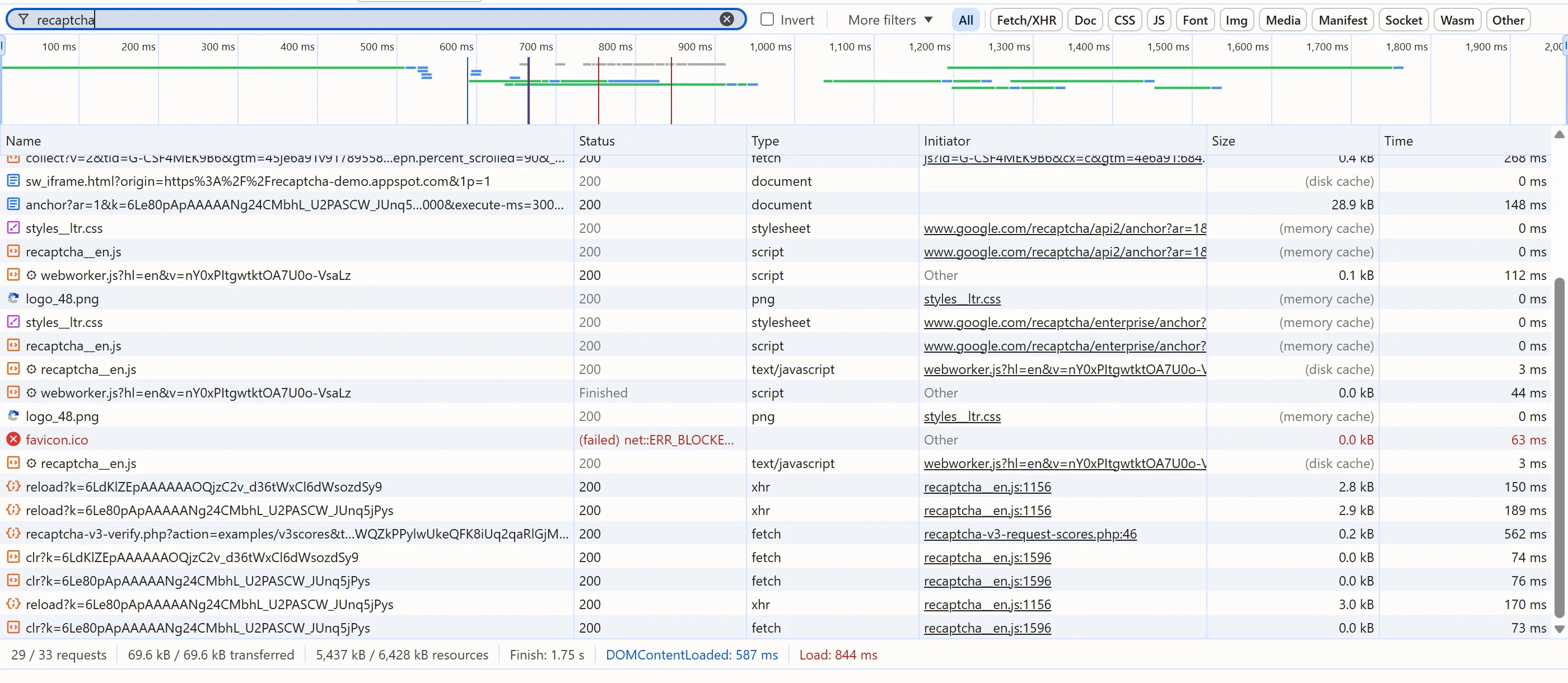
The identify-any-captcha guide covers the same checks for other captcha types.
Request the token
{
  "clientKey": "YOUR_API_KEY",
  "task": {
    "type": "ReCaptchaV3TaskProxyLess",
    "websiteURL": "https://example.com/login",
    "websiteKey": "6Lc...",
    "pageAction": "login"
  }
}Send it to POST https://api.sursolver.com/createTask. The answer is {"errorId":0,"taskId":"tsk_...","status":"idle"}. Poll POST /getTaskResult every 3 seconds: it answers {"errorId":0,"status":"processing"} until the result is ready. Errors are HTTP 200 with errorId: 1; an unexpected fault is HTTP 500 without errorId. The enterprise names are ReCaptchaV3EnterpriseTaskProxyLess and ReCaptchaV3EnterpriseTask, and the proxy-capable standard name is ReCaptchaV3Task.
Submit the token
Most v3 pages send the token as a g-recaptcha-response field in the request they protect, so a plain HTTP client is often enough. Some pages use a suffixed field name such as g-recaptcha-response-100000. Submit the form once by hand with the Network tab open and copy the exact name. If the page passes the token to a callback instead, see the token submission guide.
import time

import requests

API = 'https://api.sursolver.com'
API_KEY = 'YOUR_API_KEY'
POLL_SECONDS = 3
GIVE_UP_SECONDS = 120  # your own client-side limit


def call(path, body):
    res = requests.post(f'{API}/{path}', json=body, timeout=30)
    res.raise_for_status()  # HTTP 500 carries no errorId
    data = res.json()
    if data.get('errorId') != 0:
        raise RuntimeError(f"{data.get('errorCode')}: {data.get('errorDescription')}")
    return data


def solve(task):
    created = call('createTask', {'clientKey': API_KEY, 'task': task})
    deadline = time.monotonic() + GIVE_UP_SECONDS
    while time.monotonic() < deadline:
        time.sleep(POLL_SECONDS)
        result = call('getTaskResult', {'clientKey': API_KEY, 'taskId': created['taskId']})
        if result['status'] == 'ready':
            return result['solution']
    raise TimeoutError(f"task {created['taskId']} still processing")


solution = solve({
    'type': 'ReCaptchaV3TaskProxyLess',
    'websiteURL': 'https://example.com/login',
    'websiteKey': '6Lc...',
    'pageAction': 'login',
})

headers = {}
if solution.get('userAgent'):
    headers['User-Agent'] = solution['userAgent']

response = requests.post(
    'https://example.com/login',
    data={
        'email': 'you@example.com',
        'password': 'your-password',
        'g-recaptcha-response': solution['gRecaptchaResponse'],
    },
    headers=headers,
    timeout=30,
)
print(response.status_code)Use the user agent from the solution for the submit when one is reported. The token is single-use and short-lived, about two minutes by vendor reports, so submit it as soon as it arrives and request a new one for every attempt. The user agent and headers guide goes into the rest of the request.
Read the score on a site you own
On someone else's site you only see whether the request succeeded. On your own staging page you can see exactly what Google reports. The verification call takes your secret key and the token and returns success, score, action, challenge_ts and hostname:
import requests

VERIFY_URL = 'https://www.google.com/recaptcha/api/siteverify'

verdict = requests.post(
    VERIFY_URL,
    data={'secret': 'YOUR_SECRET_KEY', 'response': 'TOKEN_FROM_SURSOLVER'},
    timeout=10,
).json()
print(verdict.get('success'), verdict.get('score'), verdict.get('action'))
print(verdict.get('error-codes'))Run it on a handful of tokens, not hundreds, because every accepted task is charged. Compare action with what your page expects, then look at score against your own threshold.
Diagnose a rejected token
| Symptom | Likely cause | What to check |
|---|---|---|
Rejected, action differs in verification |
Action mismatch | Re-run Method 1 or 2 for that exact button and resend |
success is true, site still refuses |
Score below the site's threshold | Try the proxy variant with a clean residential address near the target's audience |
timeout-or-duplicate |
Token reused or older than about two minutes | Request a new token and submit it once, right away |
missing-input-response |
Your request did not carry the token field the server reads | Copy the field name from a manual submit |
| Errors on every token for an Enterprise page | Standard task on an Enterprise page, or stale enterprisePayload.s |
Check the script host, read s again |
userverify requests in the Network tab |
The page runs invisible v2, not v3 | Switch to the v2 task type |
When a page checks the score, the usual levers are the IP and the browser the request comes from. Datacenter and VPN addresses are reported to lower scores and residential addresses in the target's country to raise them, so a clean proxy can help where a token verifies but the site still refuses it. For the proxy variant, send proxy in the task as user:password:host:port or a URL such as http://user:password@203.0.113.10:8000, and send the follow-up request from the same address. Proxies for captcha solving and the Proxies guide cover formats and consistency rules. No setting guarantees a score, and some sites will reject tokens from any automated source.
Next steps
Find the key and action with the methods above, then send one createTask with ReCaptchaV3TaskProxyLess and the pageAction you read from the page. If the token is refused, work down the diagnosis table before you spend more tasks. The accepted names and parameters are in the public catalog (GET /v1/task-types), and the task lifecycle guide explains statuses and retention.