
Altcha has no sitekey and no image to click. It hands the browser a small computing job, and the proof that the job was done is what the site accepts. By the end of this post you will know what is in an Altcha challenge, how to capture it, what the solver sends back (a single token) and where that token goes when you submit the form.
For a shorter overview of the captcha, see the Altcha solver page. If you are new to the different families, what a captcha is and how the types work gives the background.
How Altcha works
Altcha ("Alternative CAPTCHA") is a self-hostable, privacy-oriented widget. Its web component, <altcha-widget>, fetches a challenge from the site's server, computes the answer in a Web Worker and writes the result into a hidden form field. In the default flow there is nothing for the visitor to click.
The cycle has three steps:
- The server issues a fresh, single-use challenge.
- The browser brute-forces a number that satisfies it. That is the proof-of-work.
- The form is submitted with the result, and the server checks it with one cheap verification. It does not call a third-party service.
Because the answer is a computation, not a recognition problem, the solve is deterministic. That is also why a solver API for Altcha is a convenience for outsourcing the CPU work, not a way past something a machine cannot do.
API or local solve
Whether you need the API at all depends on how you submit the form. Decide before you integrate.
- If you drive a real browser and let the widget run, the widget computes the proof by itself in its Web Worker. Nothing for you to solve.
- If your job posts the form with a plain HTTP client, or you do not want to run the widget, you have to produce the proof yourself. That is where
createTaskfits. - The open-source libraries can compute the proof locally. For the default algorithm that is probably the cheaper option for a few requests, but that is untested here, so measure it on your target. Memory-hard algorithms (below) are where outsourcing starts to pay.
The rest of this post is about the second case.
Anatomy of a challenge
The challenge is a JSON object that the site's endpoint returns. The fields you will see:
| Field | Meaning |
|---|---|
algorithm |
The proof-of-work function. PBKDF2/SHA-256 is the default; SHA-256, SHA-384, SHA-512, ARGON2ID and SCRYPT also exist. |
challenge |
The hash the browser's answer has to reproduce. |
salt |
Input to the hash. It may carry a query-like suffix such as ?...&expires=.... |
signature |
The server's signature over the challenge. |
maxnumber |
Upper bound of the search space (name varies between deployments). |
The solved result adds the found number to algorithm, challenge, salt and signature.
Two consequences for you. Challenges are fresh and single-use, and some carry an expiry, so capture one right before you use it and never reuse an old one. And ARGON2ID and SCRYPT are memory-hard (64 to 128 MB) and run in WASM workers, so expect those sites to take longer to solve than the default.
Capture the challenge
Altcha has no sitekey. The closest equivalent is the challenge URL, which can carry its own sitekey or apiKey query value; that value belongs to the URL, not to a separate parameter.
- In DevTools, open the Elements panel and find
<altcha-widget>. Thechallengeurlattribute, or thechallengeattribute when it holds an address, tells you where the widget gets its challenge. - Open the Network tab, reload, and find that request. The endpoint differs from site to site: you may see
/altcha,/api/challenge?sitekey=...or a Sentinel/v1/challenge?apiKey=...URL. - Open the response. It should be the JSON object described above. Copy it byte for byte.
- Note the
websiteURL: the full address of the page that hosts the widget.
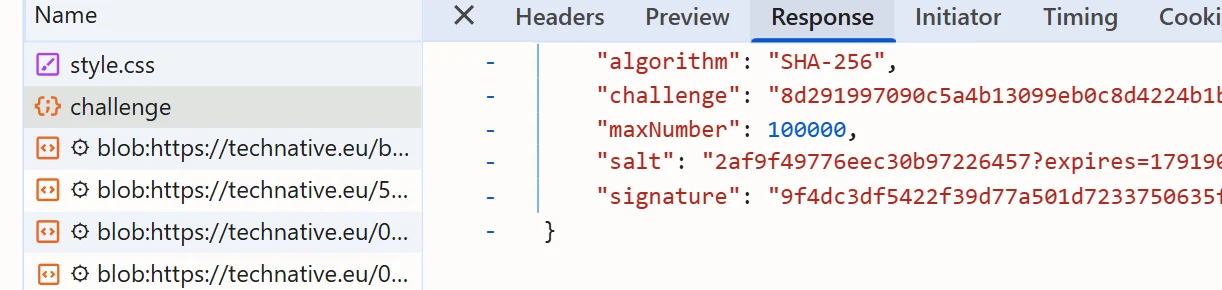
If no challenge request shows up, the challenge attribute may hold the challenge data inline instead of a URL. In that case copy the JSON from the attribute. Identify the captcha and extract its parameters covers the general DevTools routine.
Create the task
The task type is AltchaTaskProxyless. AltchaTask and AltchaToken are accepted as well, and every spelling is proxyless: Altcha never takes a proxy, so there is nothing about proxies to configure.
| Parameter | Required | Meaning |
|---|---|---|
websiteURL |
yes | The page that hosts the widget. |
challengeURL |
one of the two | The URL the widget fetches the challenge from. |
challengeJSON |
one of the two | The challenge JSON, as a string, exactly as the endpoint returned it. |
userAgent |
no | A user agent string. |
Send challengeJSON when you captured the response, since a challenge is single-use and you know exactly which one you are solving. Send challengeURL when all you have is the address. The public catalog (GET /v1/task-types) lists no separate field for maxnumber, salt or signature: they stay inside the JSON, so pass the JSON through unmodified. Truncating or editing salt, including its query-like suffix, is likely to break verification on the server.
{
  "clientKey": "YOUR_API_KEY",
  "task": {
    "type": "AltchaTaskProxyless",
    "websiteURL": "https://example.com/form",
    "challengeJSON": "{\"algorithm\":\"SHA-256\",\"challenge\":\"4f2d...\",\"salt\":\"8b9a...\",\"signature\":\"MEUCIQ...\",\"maxnumber\":1000000}"
  }
}An accepted task answers {"errorId":0,"taskId":"tsk_...","status":"idle"}. All parameters are listed by the public catalog (GET /v1/task-types).
Read the result
Poll getTaskResult every 3 seconds. It answers {"errorId":0,"status":"processing"} until the solve finishes, then:
{
  "errorId": 0,
  "status": "ready",
  "solution": { "token": "..." }
}The solution has one key, token, and no userAgent. There is no separate number key either. The docs do not spell out the encoding of the token string, so treat it as opaque: do not decode it, trim it or re-encode it. If you want to see the shape the server expects, solve the widget once in your own browser and look at the value the widget writes into the altcha field after it shows as verified.
API errors arrive as HTTP 200 with errorId: 1 and an errorCode; stop polling on the first one. A non-200 status or a body without errorId is a transport failure. See errors and the task lifecycle.
Put the token in the form
The widget writes into a hidden input named altcha by default, so that is where the token goes. Check three things on the page first:
- The widget's
nameattribute can rename the field. Confirm the name in the Elements panel. - A site can configure the widget to use a cookie instead of a field. If it expects an
altchacookie, set that. - Submit the full token. Some servers accept only a bare number, but the solution has no separate number field, only
token. Puttokenin the field unchanged.

For general rules on placing tokens and calling callbacks, see how to submit a captcha token.
Run it end to end
This Bun script fetches a fresh challenge, solves it and posts the form with an HTTP client. Replace the URLs and form fields with the ones from your target.
const API = 'https://api.sursolver.com';
const API_KEY = 'YOUR_API_KEY';
const PAGE_URL = 'https://example.com/form';
const CHALLENGE_URL = 'https://example.com/altcha/challenge';
const FORM_ACTION = 'https://example.com/form';
const POLL_MS = 3000;
const DEADLINE_MS = 180_000;

interface Envelope {
  errorId: number;
  errorCode?: string;
  errorDescription?: string;
  taskId?: string;
  status?: string;
  solution?: { token: string };
}

async function call(path: string, body: object): Promise<Envelope> {
  const res = await fetch(`${API}${path}`, {
    method: 'POST',
    headers: { 'content-type': 'application/json' },
    body: JSON.stringify(body),
  });
  if (!res.ok) throw new Error(`HTTP ${res.status}`);
  const data = (await res.json()) as Envelope;
  if (data.errorId) throw new Error(`${data.errorCode}: ${data.errorDescription}`);
  return data;
}

async function solve(task: object): Promise<string> {
  const { taskId } = await call('/createTask', { clientKey: API_KEY, task });
  const deadline = Date.now() + DEADLINE_MS;
  while (Date.now() < deadline) {
    await Bun.sleep(POLL_MS);
    const result = await call('/getTaskResult', { clientKey: API_KEY, taskId });
    if (result.status === 'ready' && result.solution) return result.solution.token;
  }
  throw new Error(`task ${taskId} not ready in time`);
}

// 1. Fetch a fresh challenge right before you need it and keep the body untouched.
const challengeJSON = await (await fetch(CHALLENGE_URL)).text();

// 2. Solve it.
const token = await solve({
  type: 'AltchaTaskProxyless',
  websiteURL: PAGE_URL,
  challengeJSON,
});

// 3. Submit the form with the token in the field the widget would have filled.
const res = await fetch(FORM_ACTION, {
  method: 'POST',
  body: new URLSearchParams({ email: 'dev@example.com', altcha: token }),
});
console.log(res.status);DEADLINE_MS is your own limit, not an API value. If you drive a browser and still want to submit the solver's token, set the field through the DOM; a hidden input is not something fill() can type into:
import { chromium } from 'playwright';

const browser = await chromium.launch();
const page = await browser.newPage();
await page.goto('https://example.com/form');

const token = 'TOKEN_FROM_getTaskResult';
await page.locator('input[name="altcha"]').evaluate((el, value) => {
  (el as HTMLInputElement).value = value;
}, token);
await page.locator('button[type="submit"]').click();
await browser.close();A widget that is running will fill the field itself, so in this variant you are replacing its result with the solver's. The Playwright captcha recipe has the general pattern.
Why a solution gets rejected
- The challenge expired or was used. Challenges are single-use and may carry an
expiresvalue. Fetch a new one, create a new task and submit promptly. - The JSON was altered. Pass
saltand the rest through exactly as the endpoint returned them. - The field or cookie is wrong. Check the
nameattribute and whether the site uses a cookie. - The site escalated to a code challenge. Sites on Altcha Cloud or Sentinel can show an interactive text or audio code challenge for risky traffic. A proof-of-work result cannot satisfy that step, and none of the documented errors points to it: an unexplained rejection on such a site is the likely cause.
What a failed task costs
A task is charged when createTask accepts it, and a task that finishes as failed automatically returns its original charge once. Because every retry needs a fresh challenge and creates a new task, check the points above before you resubmit. See the billing guide and the pricing page; for high volume, contact support.
Next steps
Capture one challenge from your target in DevTools, send it to createTask with the page URL, and compare the returned token with what the widget produces in your browser. The public catalog (GET /v1/task-types) has the full parameter list. If your target uses Friendly Captcha instead, the Friendly Captcha guide covers its sitekey, versions and token fields.